How To Set Up Unlimited Offers in Salon Tracker-Step by Step Guide
With Salon Tracker’s unlimited offers features you can easily create monthly based session packages – perfect for tanning services.
This guide will walk you through how to create and manage unlimited offers in your Salon Tracker Software, including how to set the session length, time duration, expiry date and automatic settings.
Step 1 : Navigate to the Unlimited Offers Section
Open Salon Tracker and log in with your admin account.
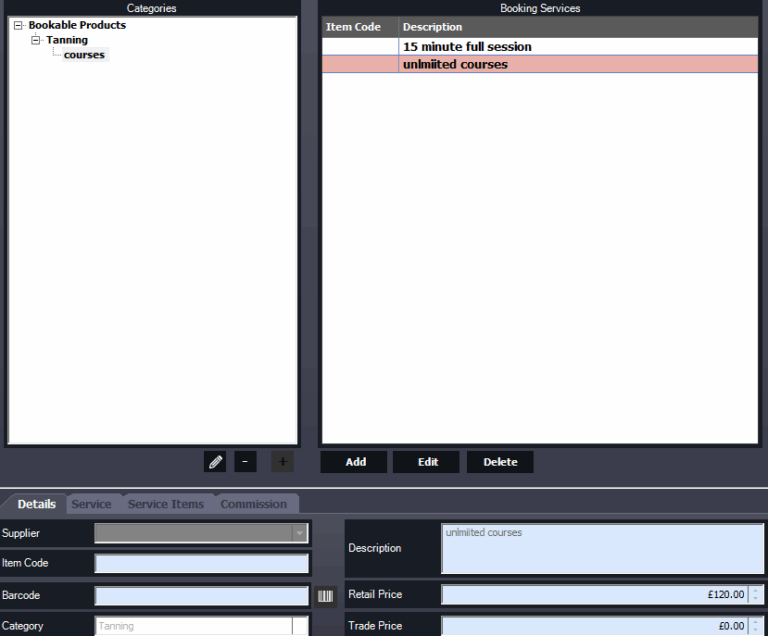
From the main menu, go to the management section.
Then click the booking services under management.
Step 2: Choose a category and Add pricing details
Before entering session information, you’ll need to assign the offer to the correct category and add the pricing details.
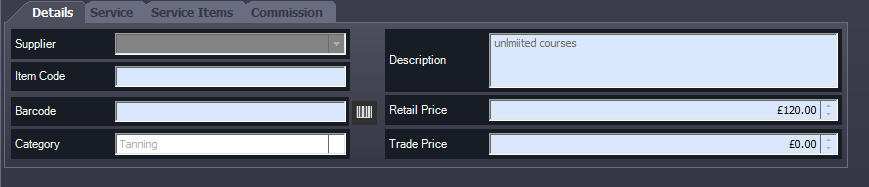
Select the category -Choose the relevant service type from the drop down list, such as Courses.
Add a description -Give your offer a clear name. E.g. unlimited course.
Enter prices – Add your retail price.
Step 3 : Set up the Number of Sessions
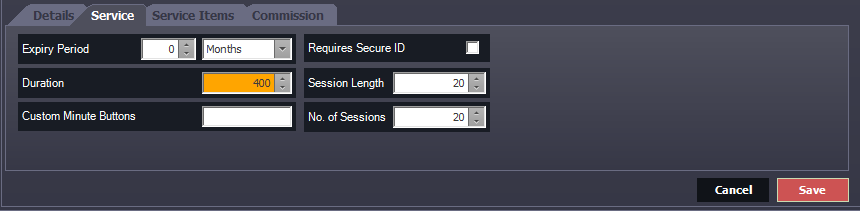
This section determines how long each section lasts and how many sessions are included in the offer.
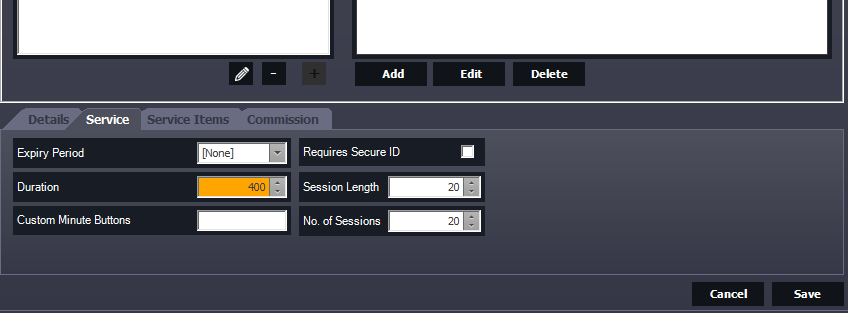
Enter the session length -This is the amount of time a single session will last. E.g. 20 minutes per session.
Enter the number of sessions – Input the total number of sessions that are available… For a typical monthly package this could range from 30-31 packages.
Step 4 : Choose the Expiry Period
Each unlimited offer needs an expiry date to define how long it’s valid for.
Set the expiry period to 30 days or 31 depending on the duration you are wanting. Or you can set it to 1 month and this will expire 1 month exactly to the date and time purchased.
The software will automatically track this and prevent sessions from being booked after expiry.
Step 5 : Save and apply the offer
Save and apply the offer. To save your setup time, Salon Tracker includes an autofill duration .
Once you’ve entered the session length and number of sessions the duration time will autofill out for you.
The software will automatically track this and prevent sessions from being booked after expiry.
Step 6 : Ready to explore more features
Visit your Salon Tracker support team for more personalised assistance setup.